> ## Documentation Index
> Fetch the complete documentation index at: https://cashfreepayments-d00050e9-handbook-faq-creation.mintlify.site/llms.txt
> Use this file to discover all available pages before exploring further.
# My Blacklists
We offer our merchants to create their blacklist who might be regarded as unacceptable or untrustworthy. Once a beneficiary is added to the blacklist, we block the transfer that is initiated to prevent the beneficiary from receiving any money.
## Create a Blacklist
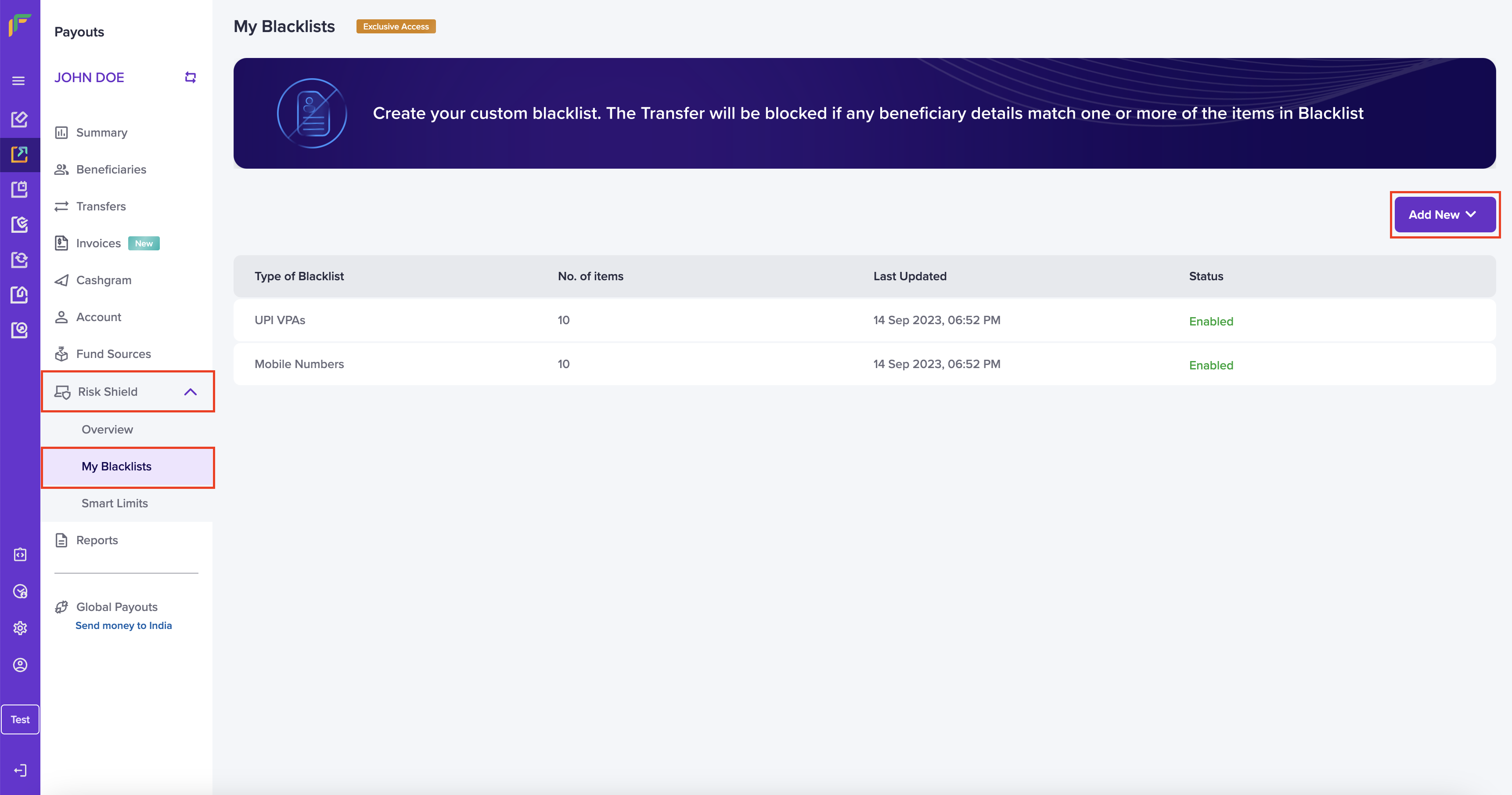
**My Blacklists** allows you to block a beneficiary by adding any of the information: mobile number, email ID, UPI VPA, and bank account. Once you login to the **Payouts** dashboard using your credentials, navigate to **Payout Protect** > **My Blacklists**.
 ### Block a Beneficiary Using Mobile Number
Follow the instructions below to block a beneficiary using the beneficiary's mobile number:
1. **Add New** - Click the dropdown list and choose **Mobile Number**.
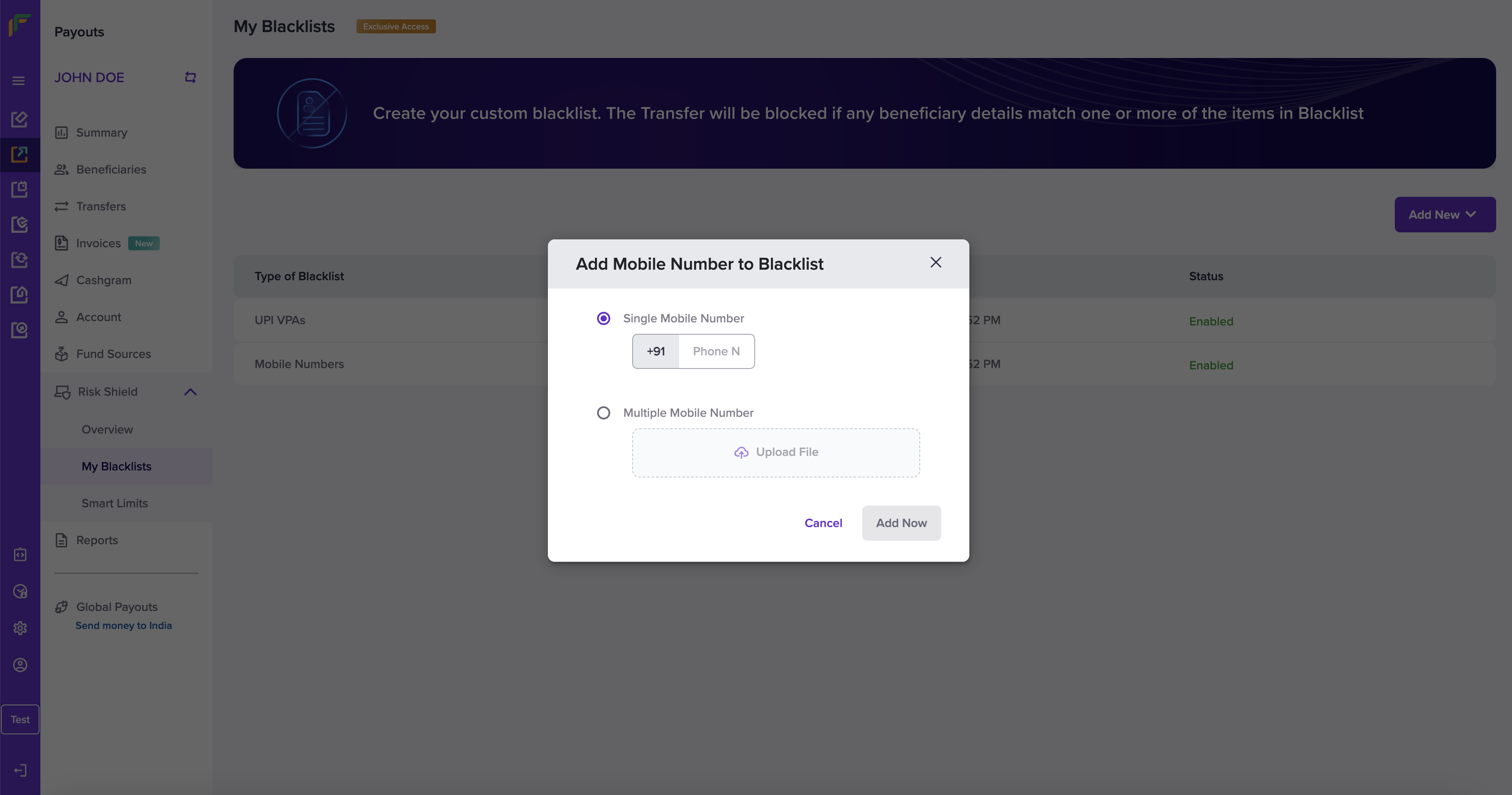
2. Fill in the following information in the **Add Mobile Number to Blacklist** popup:
* **Single Mobile Number** - Enter the mobile number in this field.
* **Multiple Mobile Number** - Download the sample file, enter the mobile numbers as per the format, and upload the file.
3. Click **Add Now**.
### Block a Beneficiary Using Mobile Number
Follow the instructions below to block a beneficiary using the beneficiary's mobile number:
1. **Add New** - Click the dropdown list and choose **Mobile Number**.
2. Fill in the following information in the **Add Mobile Number to Blacklist** popup:
* **Single Mobile Number** - Enter the mobile number in this field.
* **Multiple Mobile Number** - Download the sample file, enter the mobile numbers as per the format, and upload the file.
3. Click **Add Now**.
 ***
### Block a Beneficiary Using Email ID
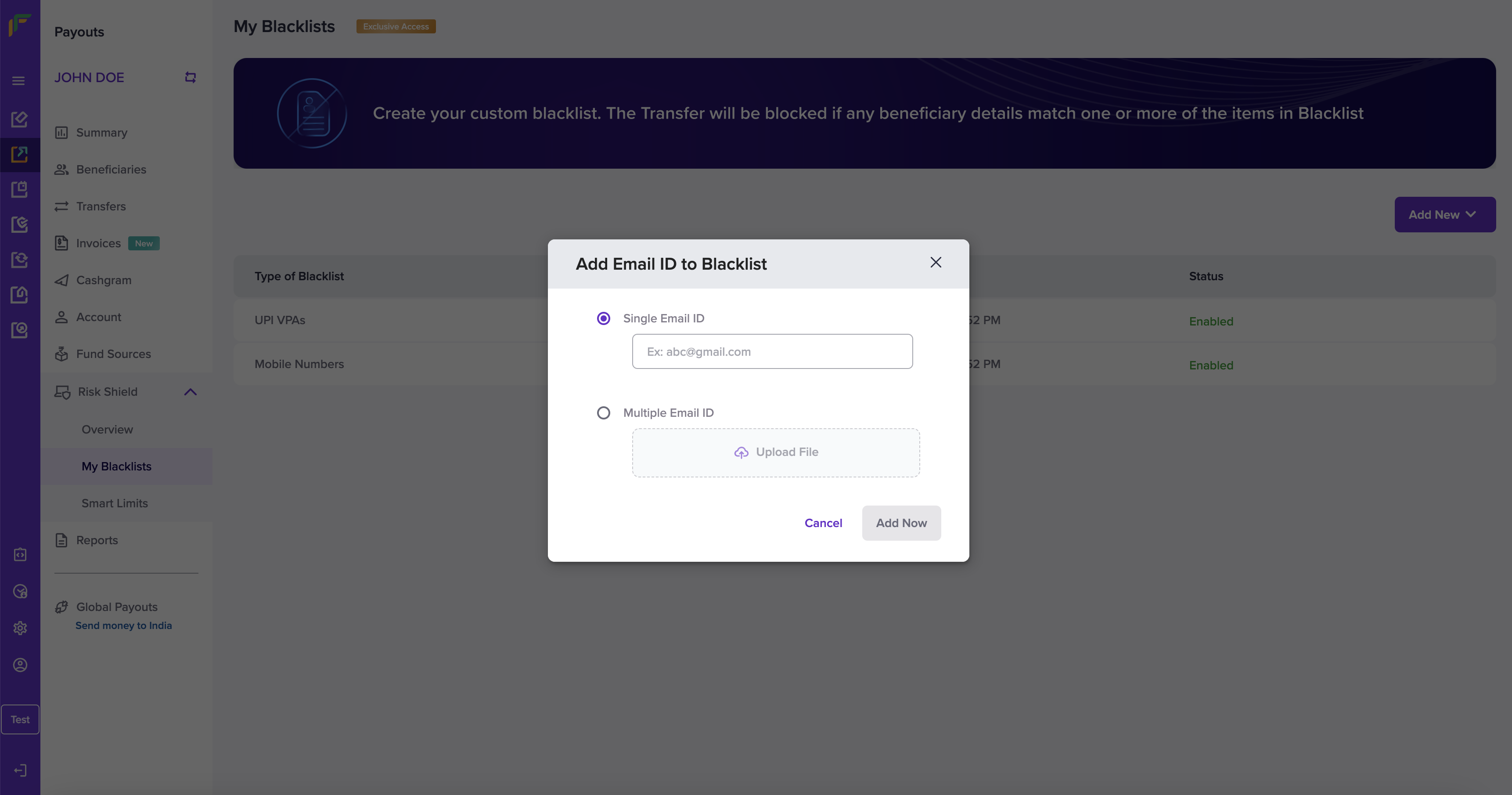
Follow the instructions below to block a beneficiary using the beneficiary's email ID:
1. **Add New** - Click the dropdown list and choose **Email ID**.
2. Fill in the following information in the **Add Email ID to Blacklist** popup:
* **Single Email ID** - Enter the email ID in this field.
* **Multiple Email ID** - Download the sample file, enter the email IDs as per the format, and upload the file.
3. Click **Add Now**.
***
### Block a Beneficiary Using Email ID
Follow the instructions below to block a beneficiary using the beneficiary's email ID:
1. **Add New** - Click the dropdown list and choose **Email ID**.
2. Fill in the following information in the **Add Email ID to Blacklist** popup:
* **Single Email ID** - Enter the email ID in this field.
* **Multiple Email ID** - Download the sample file, enter the email IDs as per the format, and upload the file.
3. Click **Add Now**.
 ***
### Block a Beneficiary Using UPI VPA
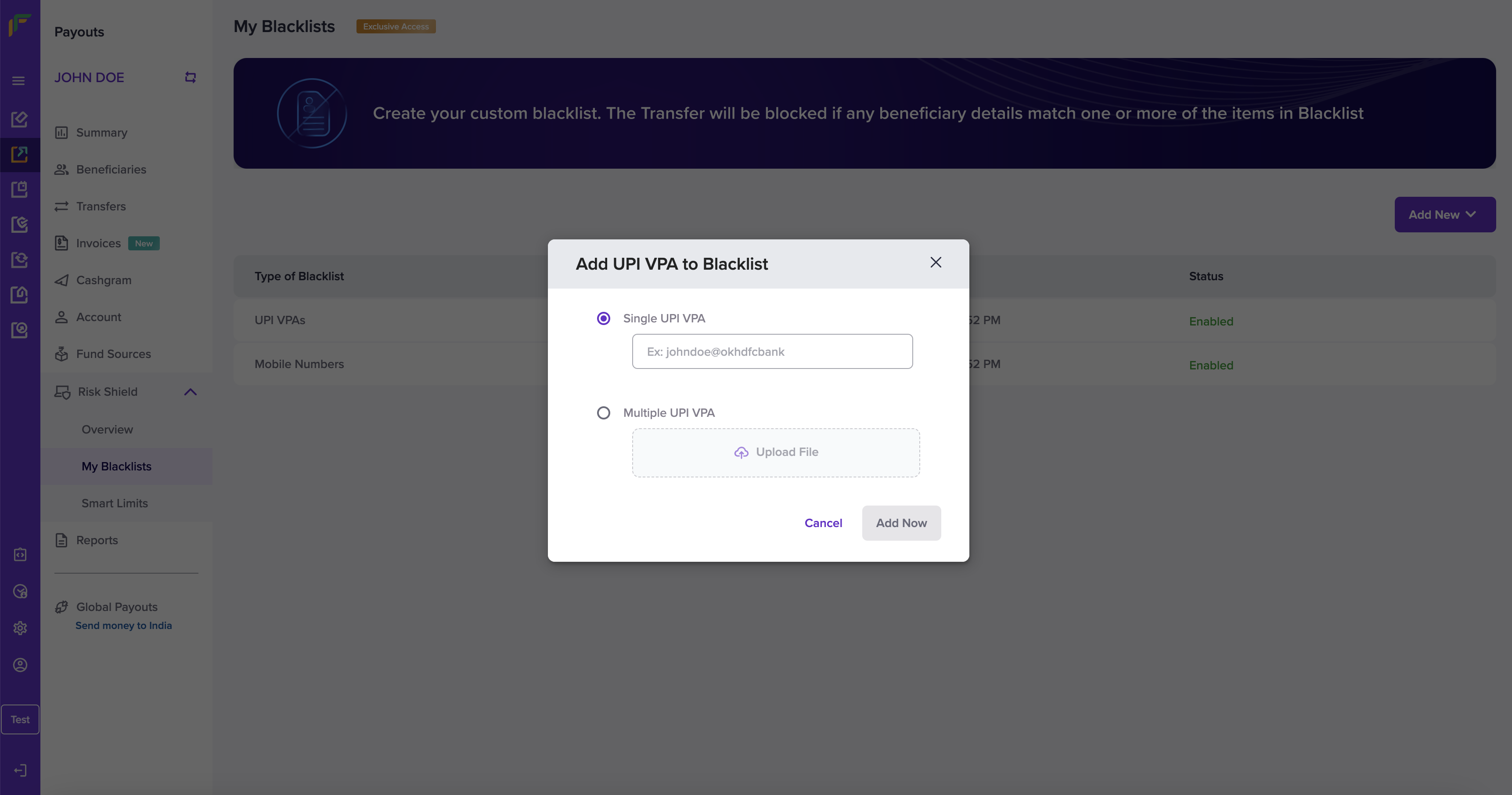
Follow the instructions below to block a beneficiary using the beneficiary's UPI VPA:
1. **Add New** - Click the dropdown list and choose **UPI VPA**.
2. Fill in the following information in the **Add UPI VPA to Blacklist** popup:
* **Single UPI VPA** - Enter the UPI VPA information in this field.
* **Multiple UPI VPA** - Download the sample file, enter the list of UPI VPA information as per the format, and upload the file.
3. Click **Add Now**.
***
### Block a Beneficiary Using UPI VPA
Follow the instructions below to block a beneficiary using the beneficiary's UPI VPA:
1. **Add New** - Click the dropdown list and choose **UPI VPA**.
2. Fill in the following information in the **Add UPI VPA to Blacklist** popup:
* **Single UPI VPA** - Enter the UPI VPA information in this field.
* **Multiple UPI VPA** - Download the sample file, enter the list of UPI VPA information as per the format, and upload the file.
3. Click **Add Now**.
 ***
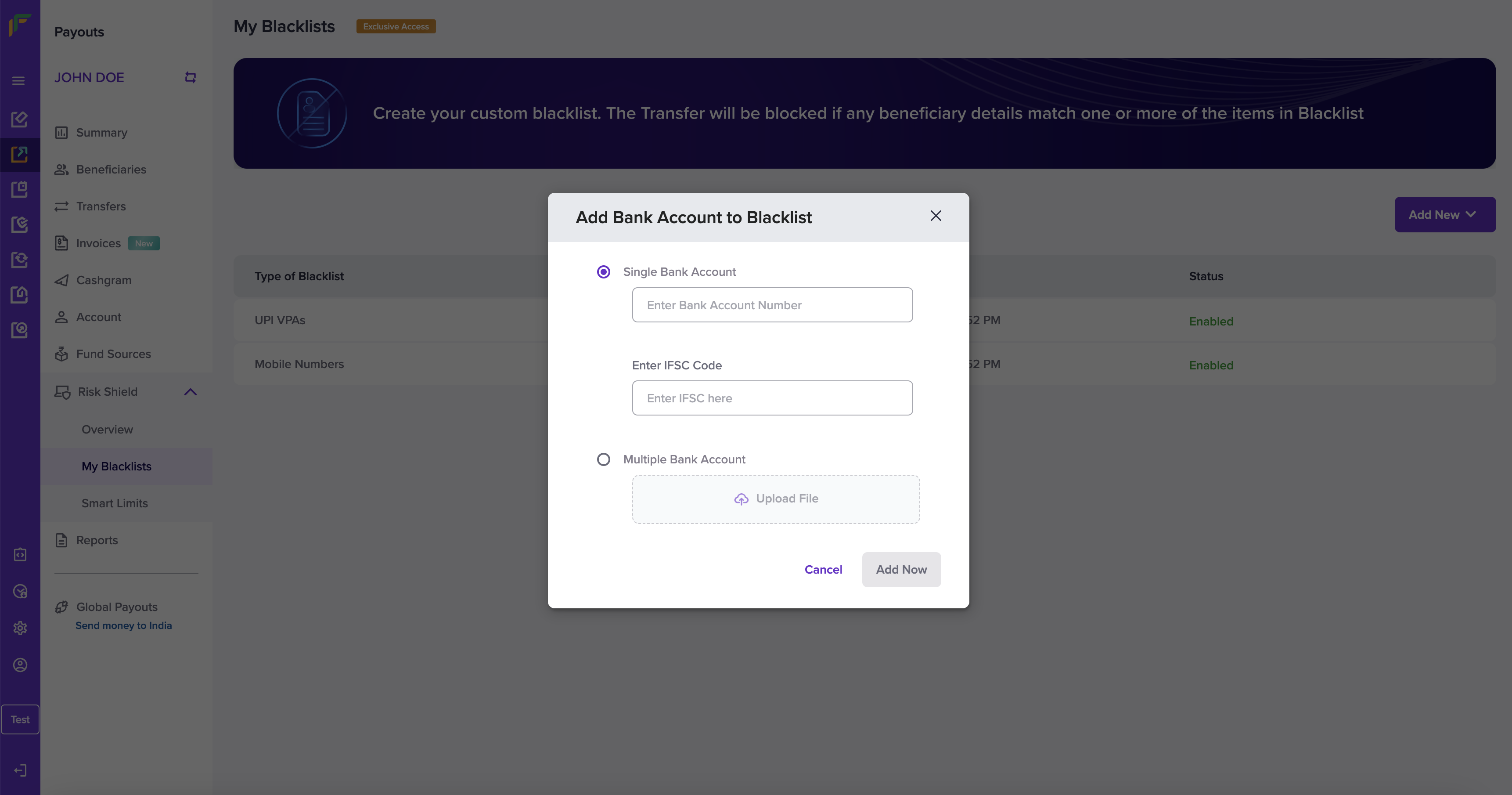
### Block a Beneficiary Using Bank Account
Follow the instructions below to block a beneficiary using the beneficiary's bank account information:
1. **Add New** - Click the dropdown list and choose **Bank Accounts**.
2. Fill in the following information in the **Add Bank Account to Blacklist** popup:
* **Single Bank Account** - Enter the bank account number in this field.
* **Enter IFSC Code** - Enter the IFSC information in this field.
* **Multiple Bank Account** - Download the sample file, enter the list of bank account information as per the format, and upload the file.
3. Click **Add Now**.
***
### Block a Beneficiary Using Bank Account
Follow the instructions below to block a beneficiary using the beneficiary's bank account information:
1. **Add New** - Click the dropdown list and choose **Bank Accounts**.
2. Fill in the following information in the **Add Bank Account to Blacklist** popup:
* **Single Bank Account** - Enter the bank account number in this field.
* **Enter IFSC Code** - Enter the IFSC information in this field.
* **Multiple Bank Account** - Download the sample file, enter the list of bank account information as per the format, and upload the file.
3. Click **Add Now**.
 ## View and Manage Blacklist
You can view the complete list of any blacklist type - Mobile Number, Email ID, UPI VPA, and Bank Account. The **My Blacklists** screen provides you with the information of each blacklist type. Click a blacklist type to view and drill-down it's complete information.
You can also add information of your beneficiary from the list screen of any blacklist type - mobile number, email ID, UPI VPA, and bank accounts.
### Edit Blacklist Information
Follow the instructions below to edit the mobile number of the beneficiary added to your blacklist:
1. Click **Mobile Numbers** from the **My Blacklists** screen.
2. Click the **Edit** icon and the **Update Mobile Number** popup displays.
* **Single Mobile Number** - Edit the mobile number in this field.
* **Multiple Mobile Number** - Download the sample format, edit the mobile number list, and upload the file.
3. Click **Add Now** to update the mobile number information.
## View and Manage Blacklist
You can view the complete list of any blacklist type - Mobile Number, Email ID, UPI VPA, and Bank Account. The **My Blacklists** screen provides you with the information of each blacklist type. Click a blacklist type to view and drill-down it's complete information.
You can also add information of your beneficiary from the list screen of any blacklist type - mobile number, email ID, UPI VPA, and bank accounts.
### Edit Blacklist Information
Follow the instructions below to edit the mobile number of the beneficiary added to your blacklist:
1. Click **Mobile Numbers** from the **My Blacklists** screen.
2. Click the **Edit** icon and the **Update Mobile Number** popup displays.
* **Single Mobile Number** - Edit the mobile number in this field.
* **Multiple Mobile Number** - Download the sample format, edit the mobile number list, and upload the file.
3. Click **Add Now** to update the mobile number information.
 ***
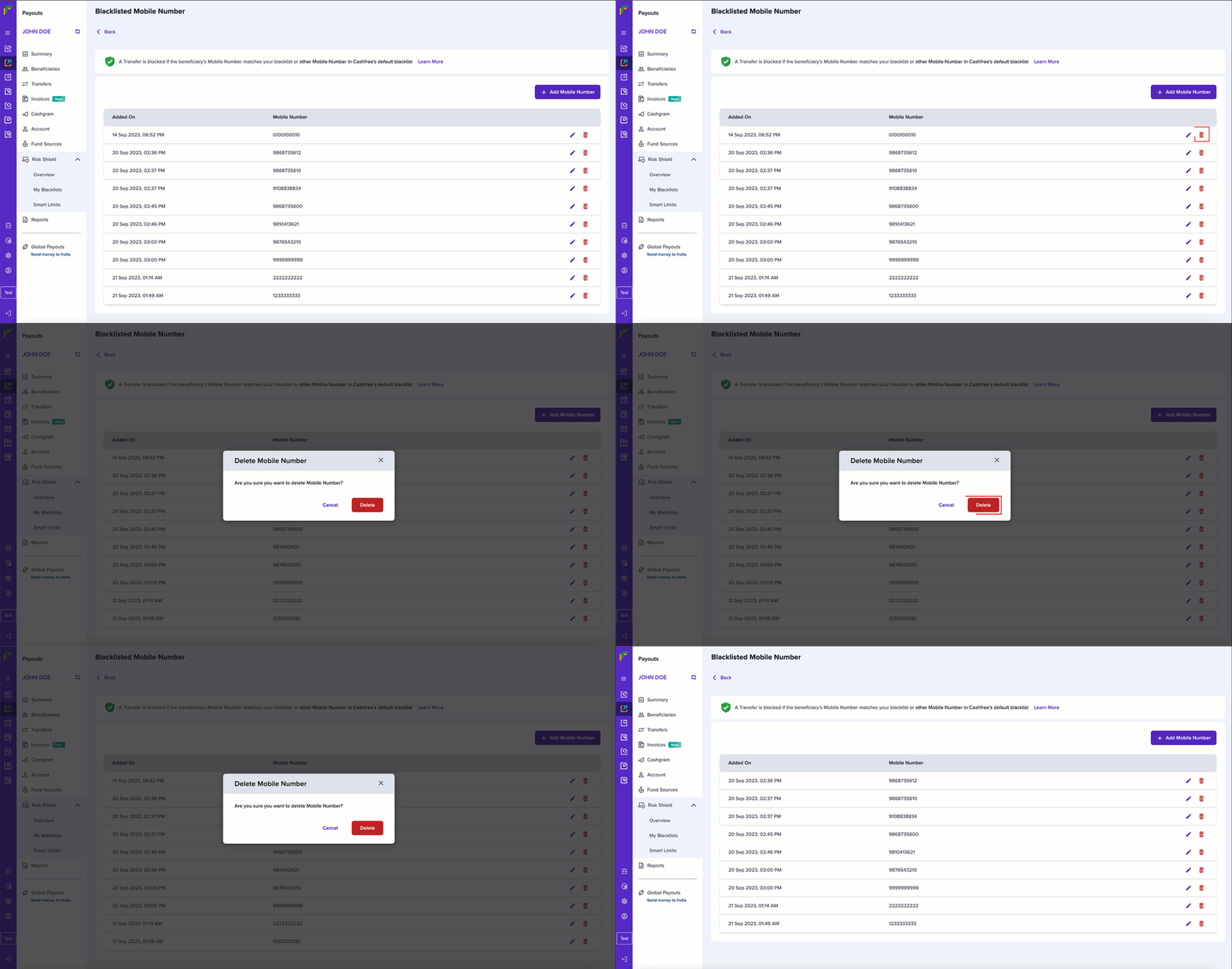
### Delete Blacklist Information
Follow the instructions below to delete a beneficiary's mobile number from your blacklist:
1. From the list of mobile numbers, click the **Delete** icon against the mobile number that you want to delete.
2. Click **Delete**.
***
### Delete Blacklist Information
Follow the instructions below to delete a beneficiary's mobile number from your blacklist:
1. From the list of mobile numbers, click the **Delete** icon against the mobile number that you want to delete.
2. Click **Delete**.
 Follow the same instructions to view and manage information in your blacklist.
***
## Whitelists
We provide our merchants the option to create a whitelist for beneficiaries deemed acceptable and trustworthy. Once a beneficiary is added to the whitelist, we ensure that any initiated transfer to this beneficiary is allowed without any risk checks, facilitating the transaction smoothly.
### Create a whitelist
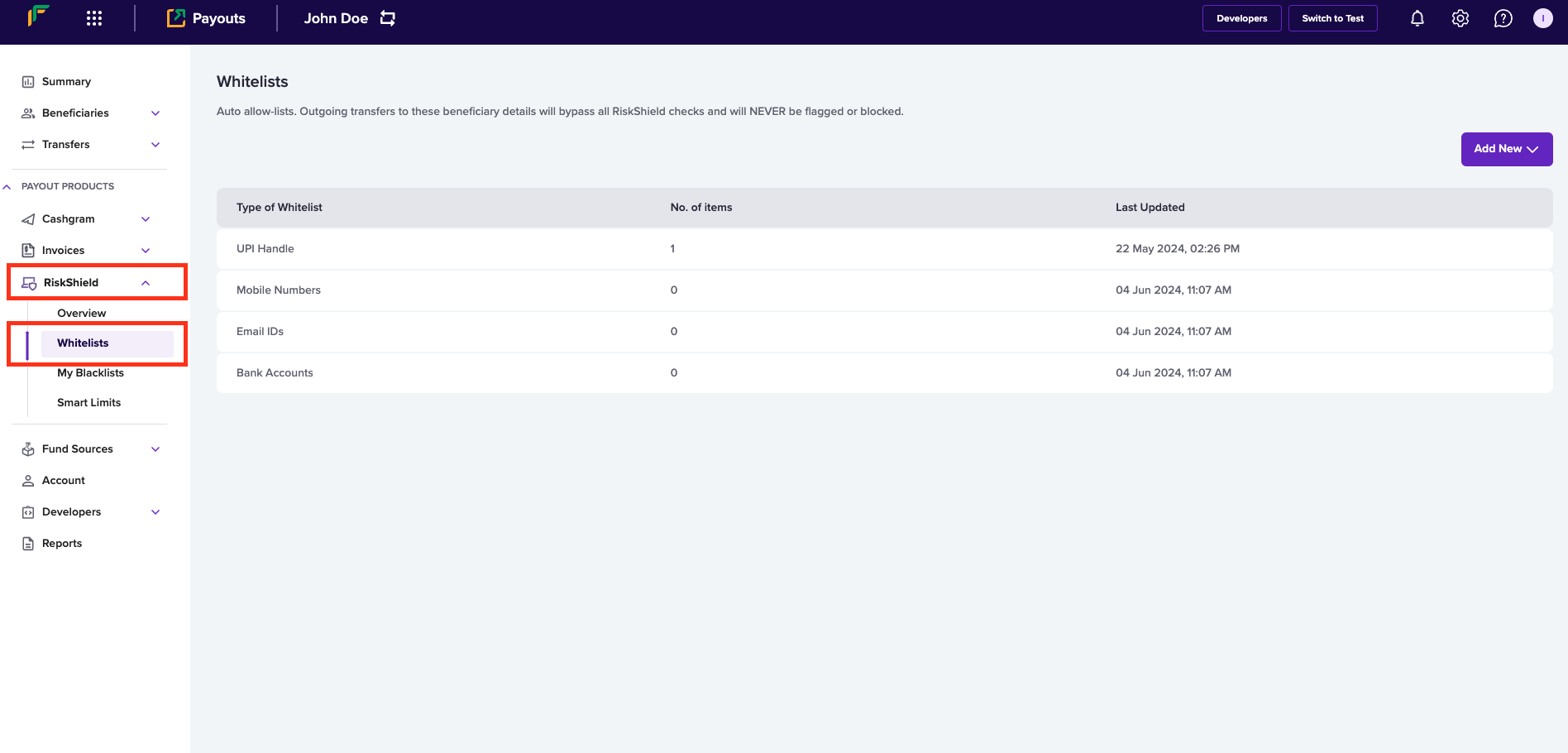
*Whitelists* allows you to always initiate a transfer to a beneficiary by adding any of the information: mobile number, email address, UPI VPA, or bank account information. Once you login to the *Payouts* dashboard, navigate to **Payout Protect**> **Whitelists**.
Follow the same instructions to view and manage information in your blacklist.
***
## Whitelists
We provide our merchants the option to create a whitelist for beneficiaries deemed acceptable and trustworthy. Once a beneficiary is added to the whitelist, we ensure that any initiated transfer to this beneficiary is allowed without any risk checks, facilitating the transaction smoothly.
### Create a whitelist
*Whitelists* allows you to always initiate a transfer to a beneficiary by adding any of the information: mobile number, email address, UPI VPA, or bank account information. Once you login to the *Payouts* dashboard, navigate to **Payout Protect**> **Whitelists**.
 #### Allow a beneficiary using mobile number
Follow the instructions below to allow a beneficiary using the beneficiary's mobile number:
1. Click **Add New** > **Mobile Number**.
#### Allow a beneficiary using mobile number
Follow the instructions below to allow a beneficiary using the beneficiary's mobile number:
1. Click **Add New** > **Mobile Number**.
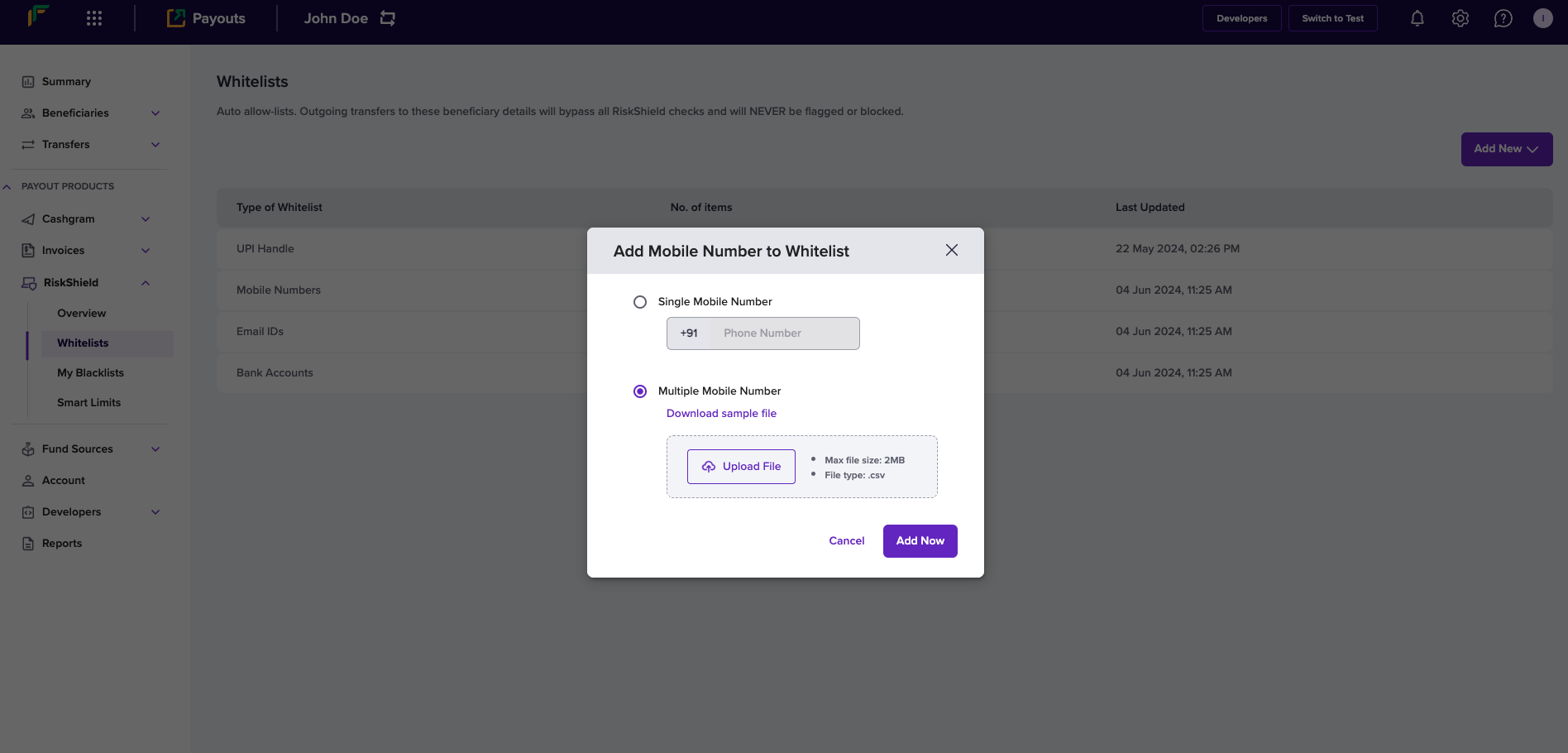
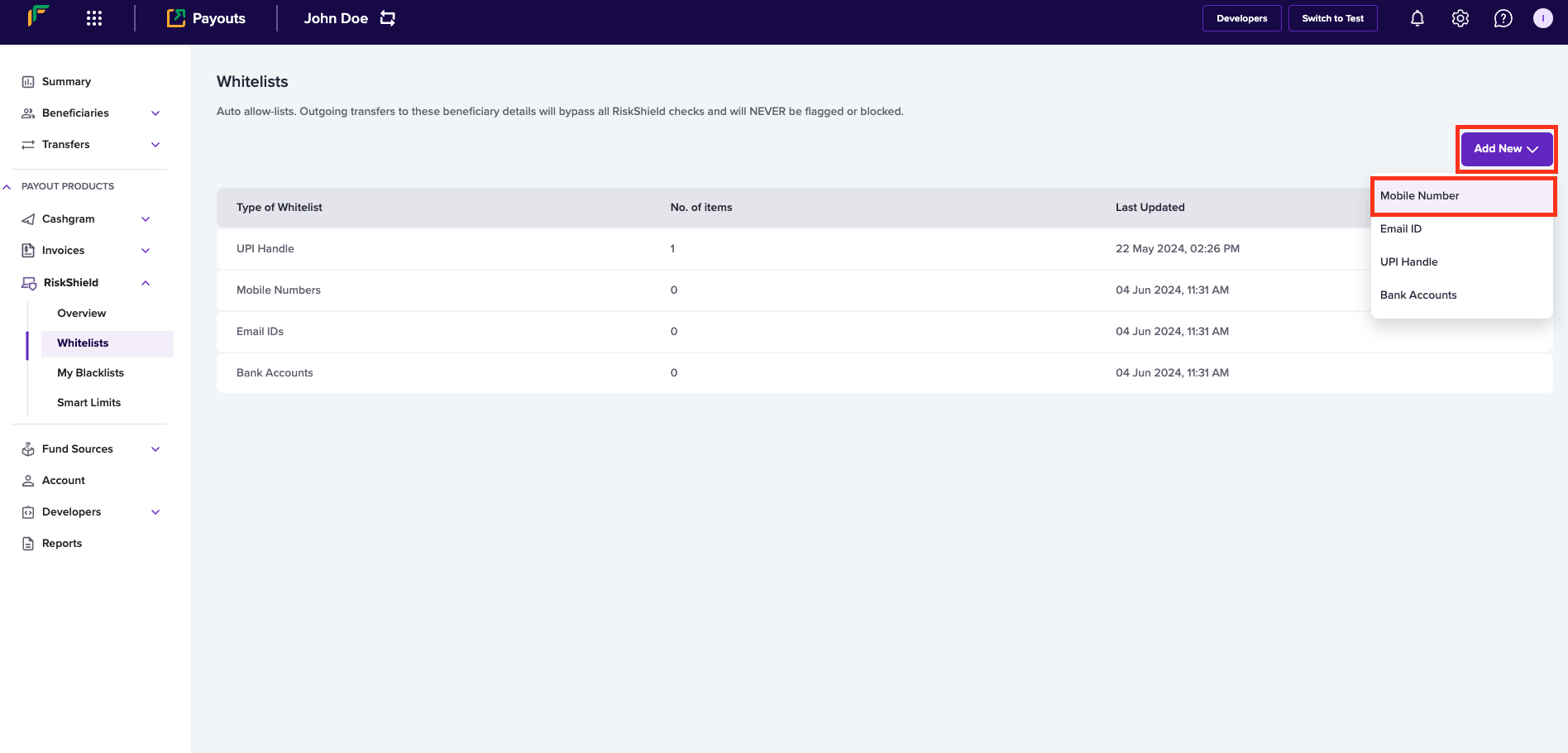 2. Enter the following information in the *Add Mobile Number to Whitelist* popup:
* **Single Mobile Number** - If you want to allow a single mobile number, select this option and enter the mobile number in this field.
* **Multiple Mobile Number** - If you want to allow multiple mobile numbers, select this option, use **Download sample file** and enter mobile numbers as per the format in the file, and upload the file using **Upload File**.
3. Click **Add Now**.
2. Enter the following information in the *Add Mobile Number to Whitelist* popup:
* **Single Mobile Number** - If you want to allow a single mobile number, select this option and enter the mobile number in this field.
* **Multiple Mobile Number** - If you want to allow multiple mobile numbers, select this option, use **Download sample file** and enter mobile numbers as per the format in the file, and upload the file using **Upload File**.
3. Click **Add Now**.
 ***
#### Allow a beneficiary using email ID
Follow the instructions below to allow a beneficiary using the beneficiary's email ID:
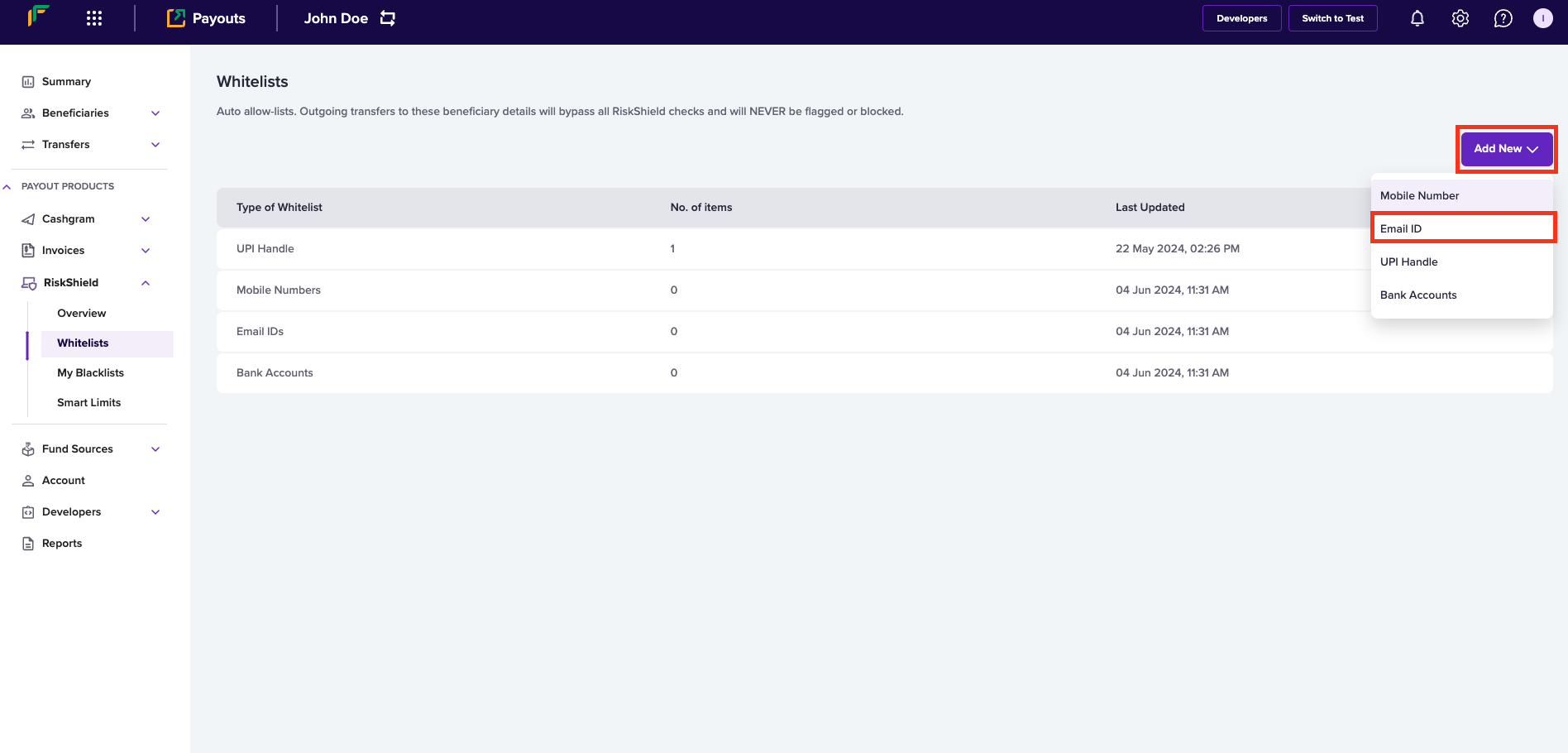
1. Click **Add New** > **Email ID**.
***
#### Allow a beneficiary using email ID
Follow the instructions below to allow a beneficiary using the beneficiary's email ID:
1. Click **Add New** > **Email ID**.
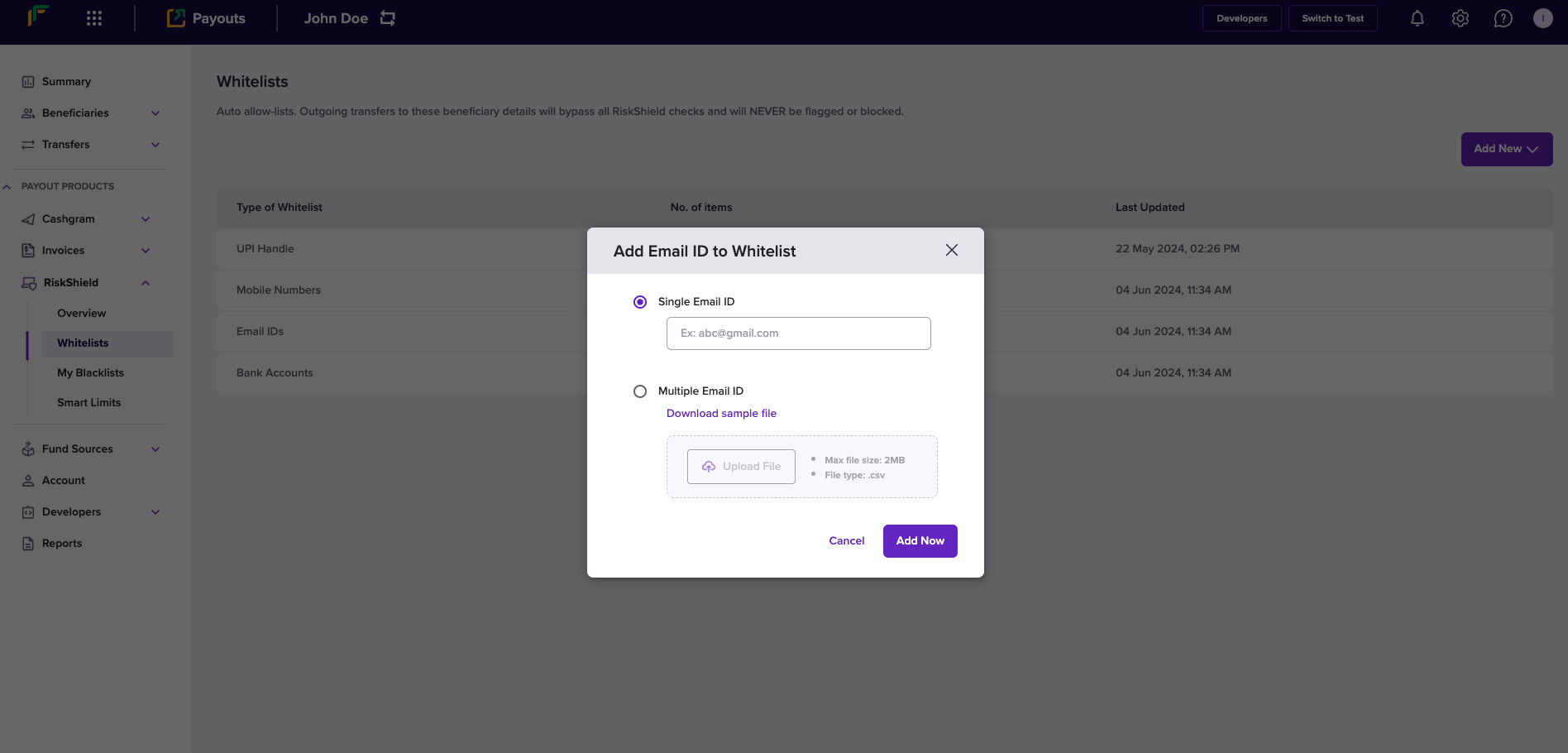
 2. Enter the following information in the *Add Email ID to Whitelist* popup:
* **Single Email ID** - If you want to allow a single email address, select this option and enter the email ID in this field.
* **Multiple Email ID** - If you want to allow multiple email addresses, select this option, use **Download sample file** and enter email IDs as per the format in the file, and upload the file using **Upload File**.
3. Click **Add Now**.
2. Enter the following information in the *Add Email ID to Whitelist* popup:
* **Single Email ID** - If you want to allow a single email address, select this option and enter the email ID in this field.
* **Multiple Email ID** - If you want to allow multiple email addresses, select this option, use **Download sample file** and enter email IDs as per the format in the file, and upload the file using **Upload File**.
3. Click **Add Now**.
 ***
### Allow a beneficiary using UPI VPA
Follow the instructions below to allow a beneficiary using the beneficiary's UPI VPA:
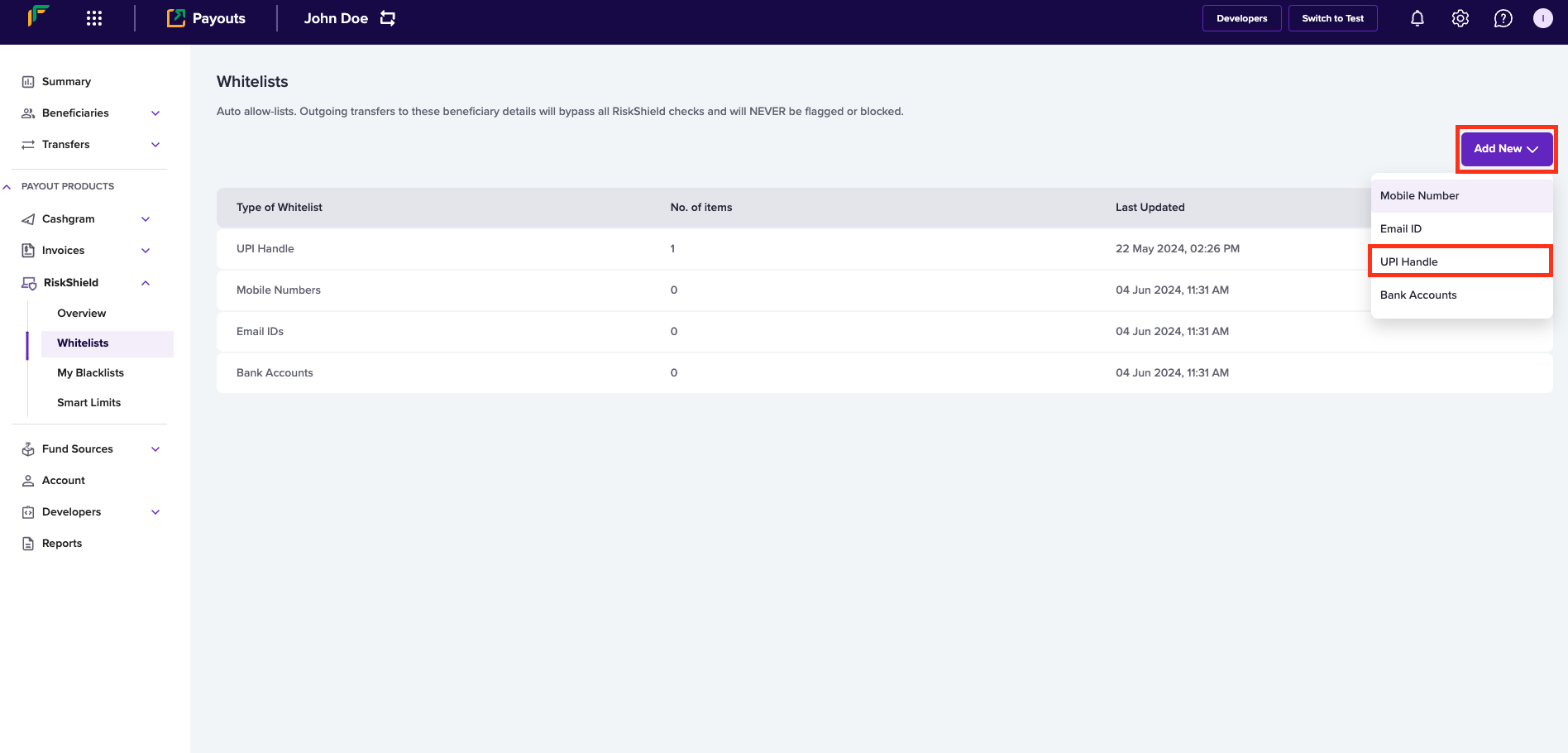
1. Click **Add New** > **UPI Handle**
***
### Allow a beneficiary using UPI VPA
Follow the instructions below to allow a beneficiary using the beneficiary's UPI VPA:
1. Click **Add New** > **UPI Handle**
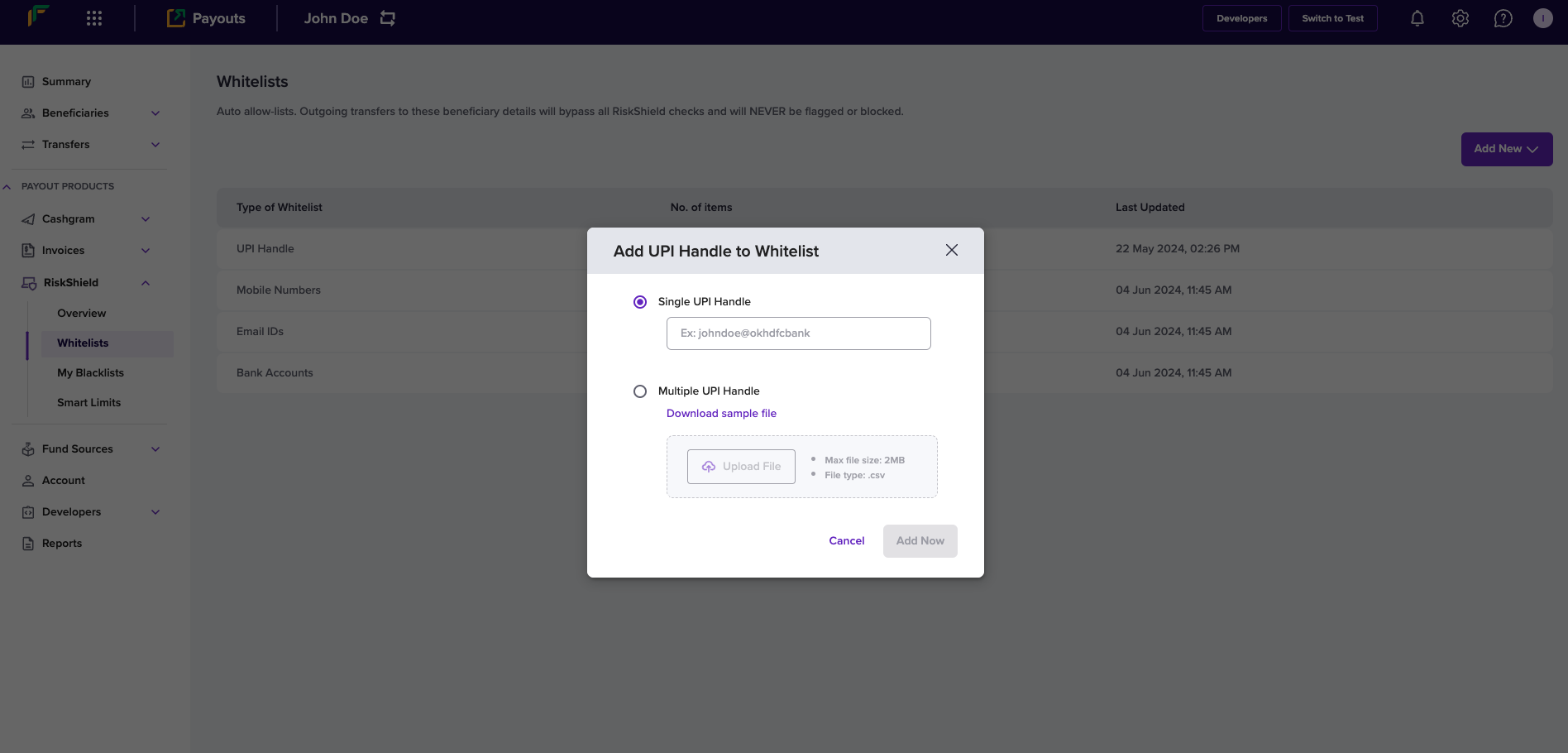
 2. Enter the following information in the *Add UPI Handle to Whitelist* popup:
* **Single UPI Handle** - If you want to allow a single UPI handle, select this option and enter the UPI VPA in this field.
* **Multiple UPI Handle** - If you want to allow multiple UPI handles, select this option, use **Download sample file** and enter UPI VPA information as per the format in the file, and upload the file using **Upload File**.
3. Click **Add Now**.
2. Enter the following information in the *Add UPI Handle to Whitelist* popup:
* **Single UPI Handle** - If you want to allow a single UPI handle, select this option and enter the UPI VPA in this field.
* **Multiple UPI Handle** - If you want to allow multiple UPI handles, select this option, use **Download sample file** and enter UPI VPA information as per the format in the file, and upload the file using **Upload File**.
3. Click **Add Now**.
 ***
#### Allow a beneficiary using bank account information
Follow the instructions below to allow a beneficiary using the beneficiary's bank account information:
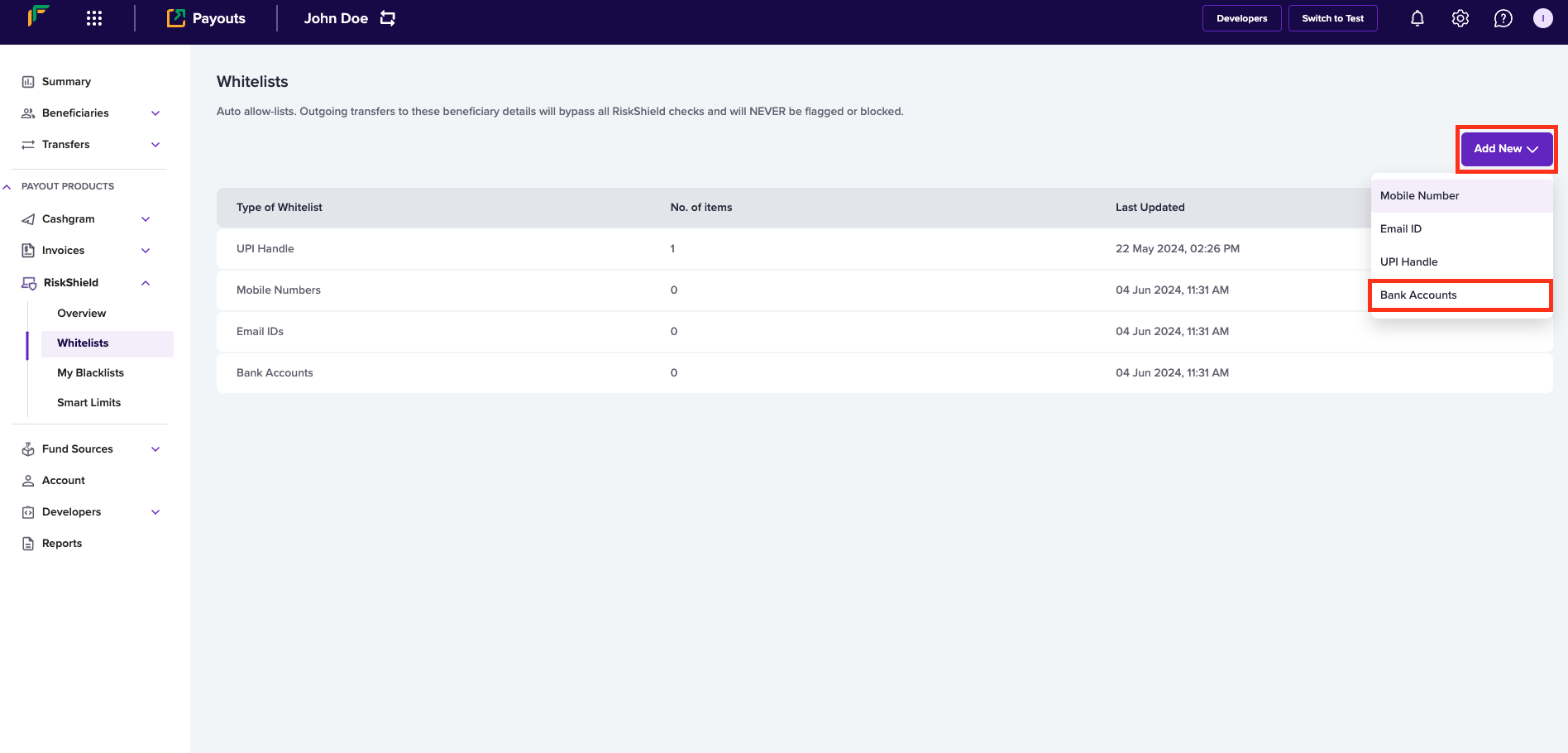
1. Click **Add New** > **Bank Accounts**.
***
#### Allow a beneficiary using bank account information
Follow the instructions below to allow a beneficiary using the beneficiary's bank account information:
1. Click **Add New** > **Bank Accounts**.
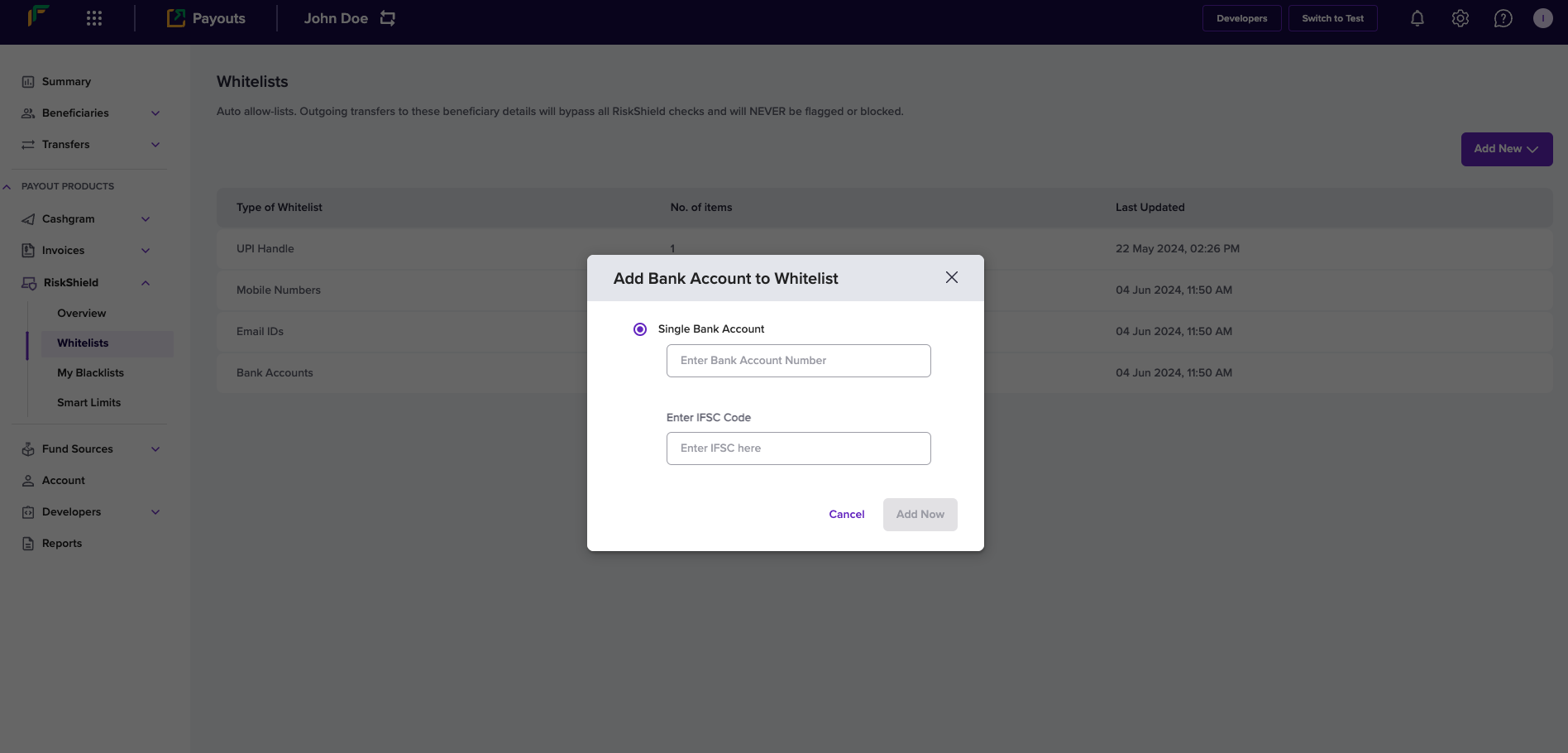
 2. Enter the following information in the *Add Bank Account to Whitelist* popup:
* **Single Bank Account** - Enter the bank account number of the beneficiary in this field.
* **Enter IFSC Code** - Enter the IFSC information in this field.
3. Click **Add Now**.
2. Enter the following information in the *Add Bank Account to Whitelist* popup:
* **Single Bank Account** - Enter the bank account number of the beneficiary in this field.
* **Enter IFSC Code** - Enter the IFSC information in this field.
3. Click **Add Now**.
 ***
### View and manage whitelist
You can view the complete list of any whitelist type - UPI Handle, Mobile Numbers, Email IDs, and Bank Accounts. The *Whitelists* screen provides you with the information of each whitelist type. Click a whitelist type to view and drill-down its complete information.
#### Edit whitelist Information
Follow the instructions below to edit the UPI VPA information of the beneficiary added to your whitelist:
1. Click **UPI Handle** from the *Whitelists* screen.
2. Click the **Edit** icon.
***
### View and manage whitelist
You can view the complete list of any whitelist type - UPI Handle, Mobile Numbers, Email IDs, and Bank Accounts. The *Whitelists* screen provides you with the information of each whitelist type. Click a whitelist type to view and drill-down its complete information.
#### Edit whitelist Information
Follow the instructions below to edit the UPI VPA information of the beneficiary added to your whitelist:
1. Click **UPI Handle** from the *Whitelists* screen.
2. Click the **Edit** icon.
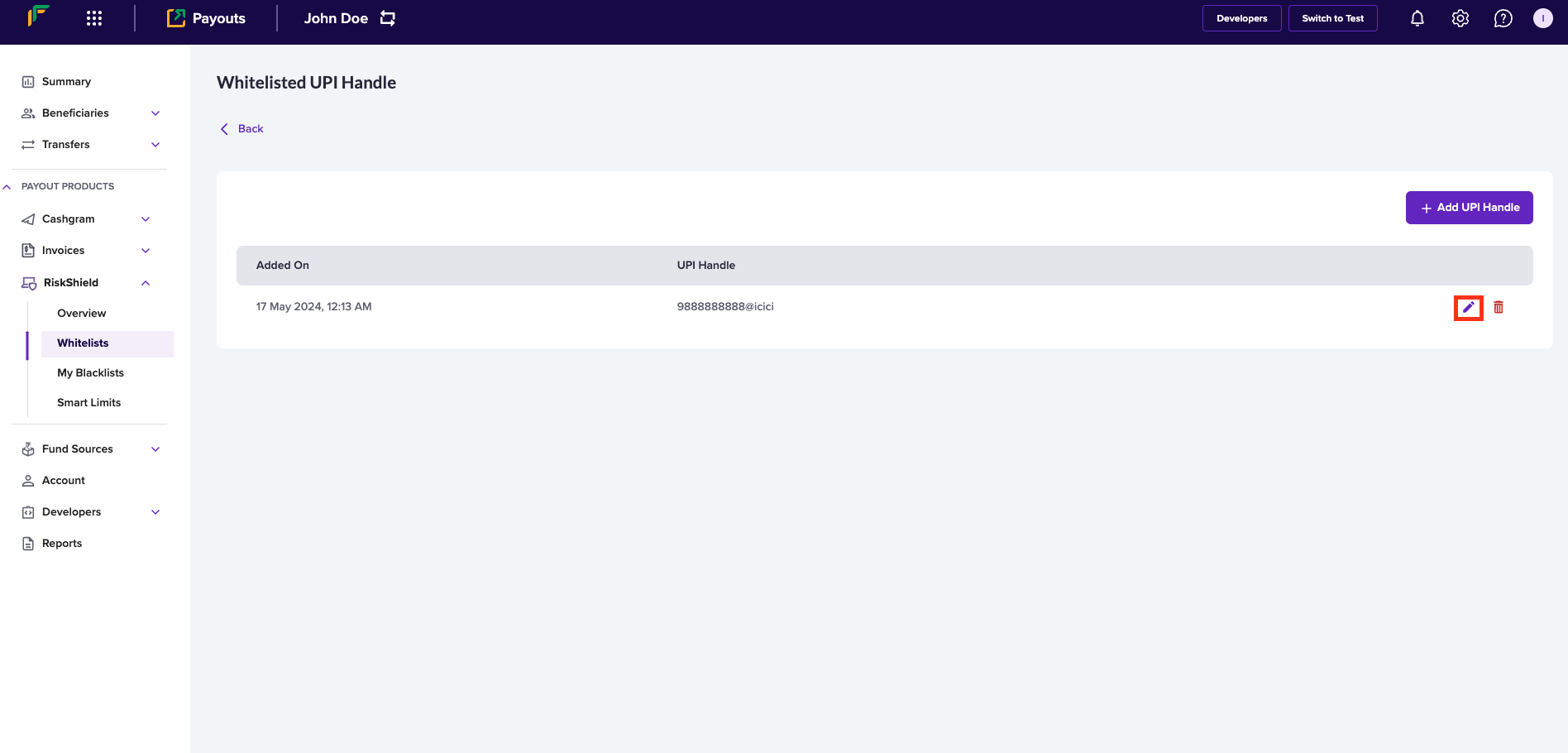
3. Enter the following information in the *Update UPI Handle* popup:
* **Single UPI Handle** - Edit the UPI VPA information in this field.
* **Multiple UPI Handle** - If you want to edit multiple UPI VPA information, click **Download sample file**, enter the updated information as per the format in the file, and upload the file using **Upload File**.
4. Click **Add Now**.
***
#### Delete whitelist information
Follow the instructions below to delete a beneficiary's UPI VPA information from your whitelist:
1. From the list of UPI information, click the **Delete** icon against the UPI information that you want to delete.
2. Click **Delete**.
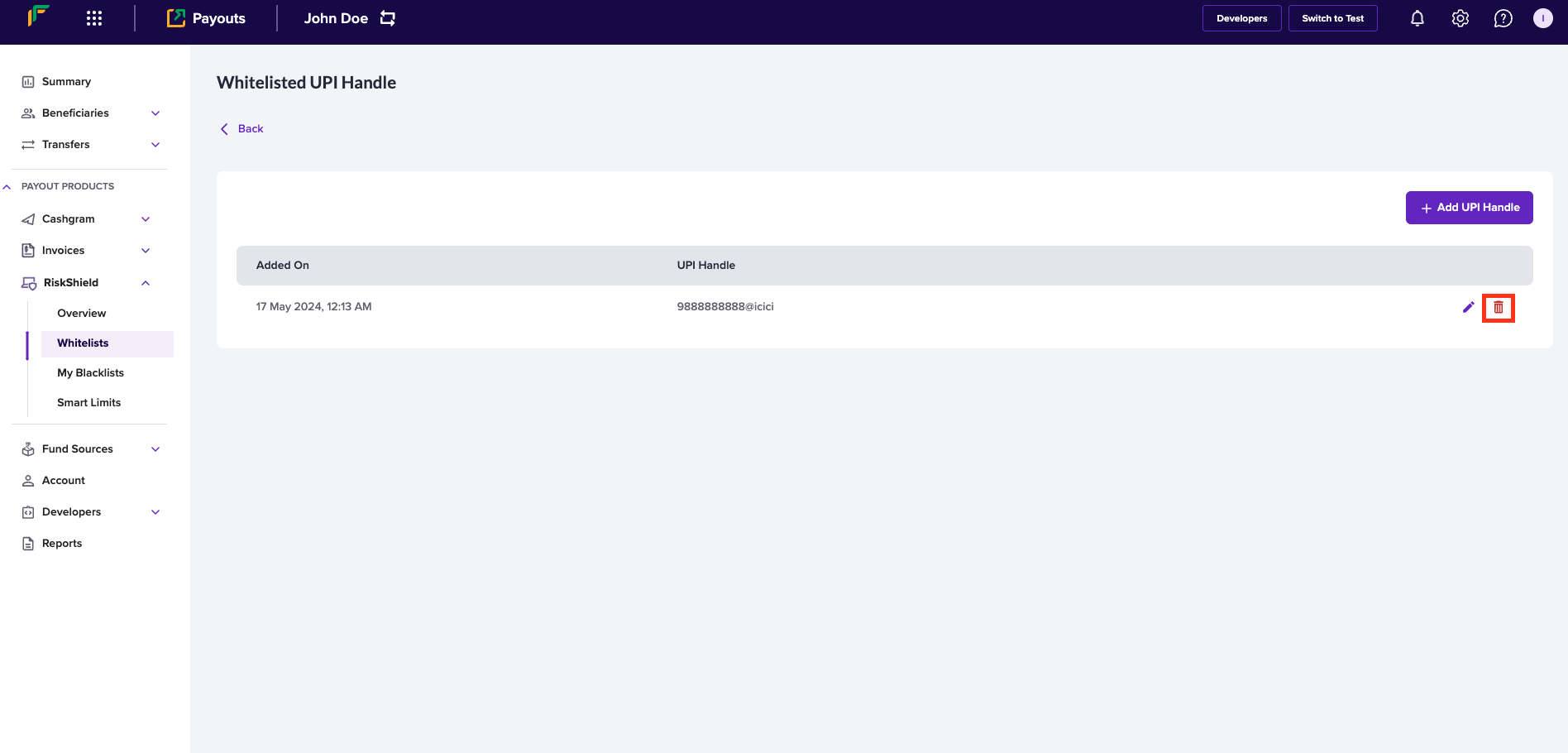 Follow the same instructions to view and manage information in your whitelist.
***
Follow the same instructions to view and manage information in your whitelist.
***